October 2026 (version v1.1)
Released
What’s new
Zoodle now plans the month as well as the day. A Planner puts your work on a calendar, reports hours by project and turns them into a work schedule for the client. You can also make as many boards as you like, and the Kanban Board's Post-its carry a status, a time and a due date.
- A Planner for the monthWeeks Monday to Sunday, a mini Post-it for each day's work, and each week's hours budgeted and completed.
- Reporting and work schedulesHours by project and client, and a work schedule for each project to send as a PDF.
- Boards of your ownMake as many boards of each type as you need, then name, pin and reorder them.
- A Kanban Board for the workTrack is now the Kanban Board: each Post-it in the cell you put it in, ten rows deep, and a + to add one where it goes.
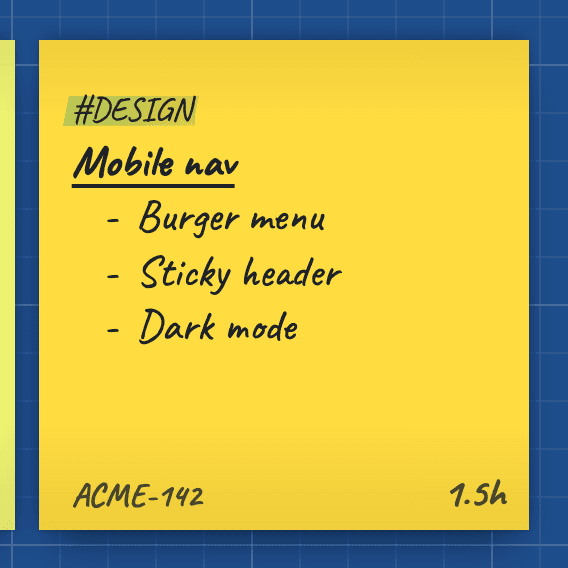
- Post-its that say moreA status, a time estimate and a due date, shown on the note itself; its #tag smaller, so its title stands out.
- An admin backlogMini Post-its for small jobs at the foot of To Do, ten rows of them.
- Done fills a gaugeThe hours on what's done, against your day's billable target — and a cheer as each one lands.
- A bin in 3DThrown Post-its arc in from the top and sit in its bottom; spin it and tip it.
- A demo, a features page and these notes/zoodle#demo opens made-up boards that show it all, a Planner included; All Features and Updates say what Zoodle does.
New features
A Planner for the month
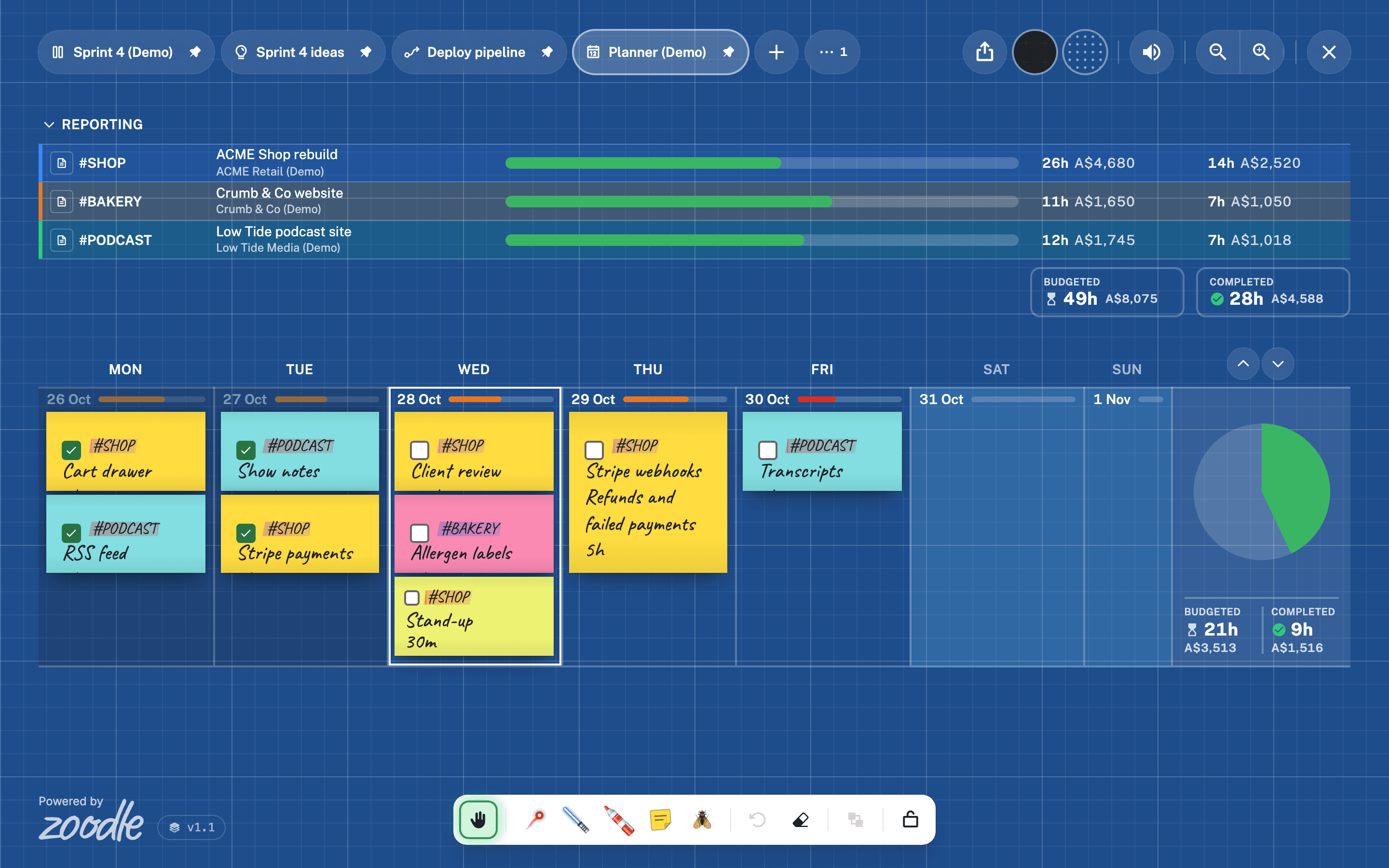
A new board type: a calendar of weeks, Monday to Sunday, from eight weeks back to eight ahead. Stick a mini Post-it on a day for each piece of work, with its #topic, a title and its time (2h, 30m). A day has three slots, two for tasks and one for an admin mini, and a job over 4h takes two. Each day's gauge fills against 8h, or 4h at a weekend.
Tick a mini's Done box when it's finished. Each week shows its Budgeted hours (every mini) and Completed hours (those ticked). On the dashboard, with figures showing, it also shows what they're worth at each project's hourly rate, in AUD, with NZD converted at the day's rate. A Planner has no bin: delete a mini and ⌘Z brings it back.
Reporting and work schedules
Over a Planner, Reporting gives each project a row, by its #topic: its name and client, a bar of hours done against budgeted, and the totals under them. Rows are sorted by client, each client in its own colour.
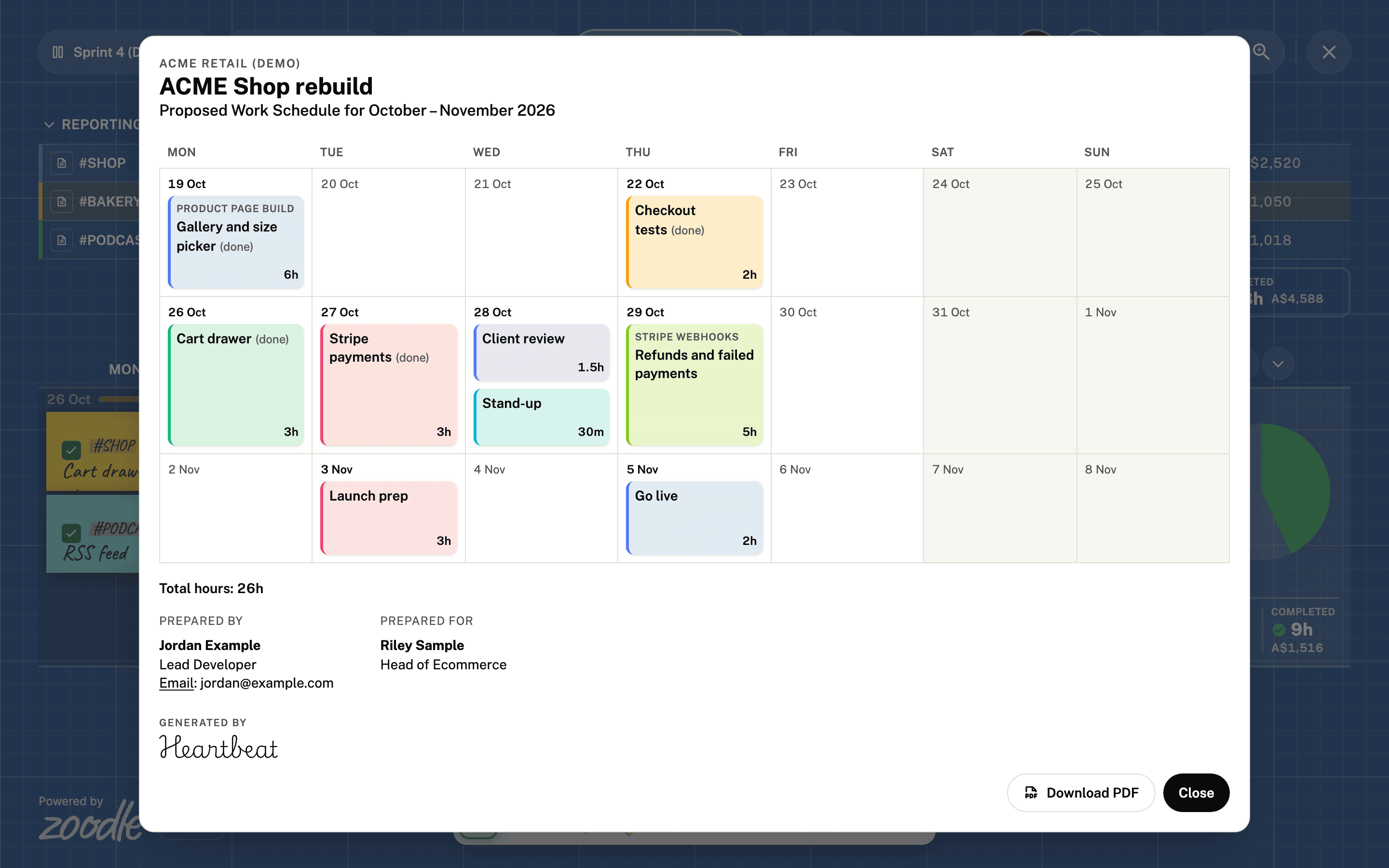
The page icon on a row opens that project's work schedule, to send the client. It shows the months the work runs over, a calendar of each task on its day with its hours, the total, and who it's prepared by and for, from the project's contacts. Anything marked TBC is left out. Download PDF saves it as a landscape PDF.
Boards of your own
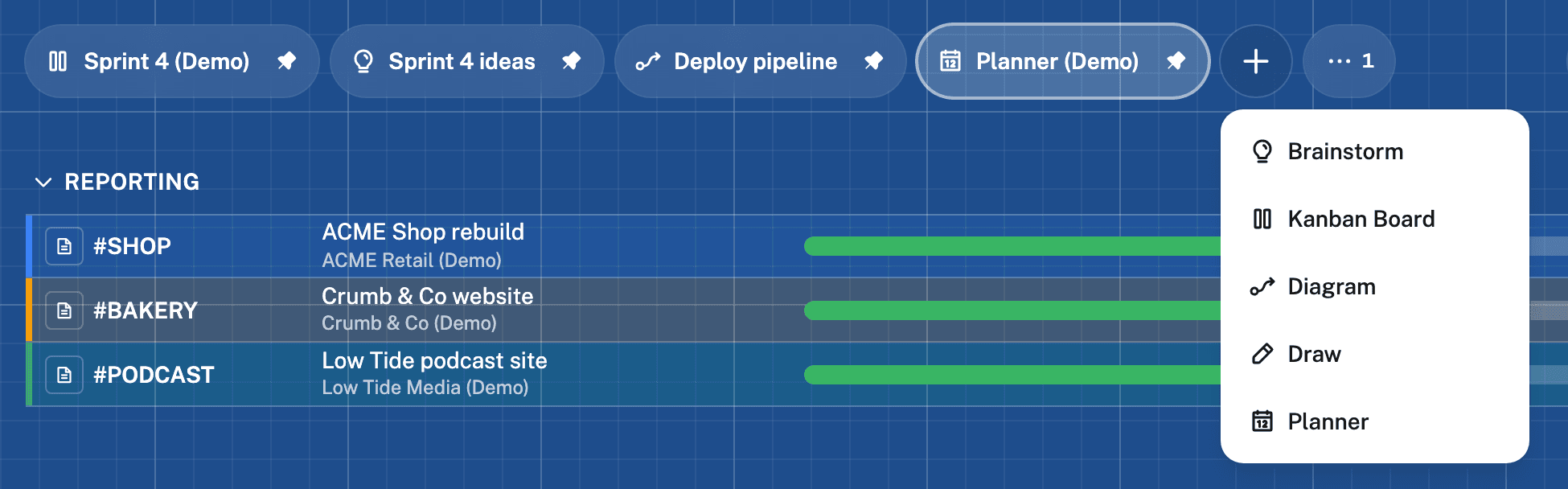
(+) makes a new board of any type, named for its type and the next number along. Each board is a pill: press it to open the board, and press the open board's name again to rename it. Unpin a board to put it under (…). Drag a pill along the others, or press Alt and ← or →, to change the order.
A Kanban Board for the work
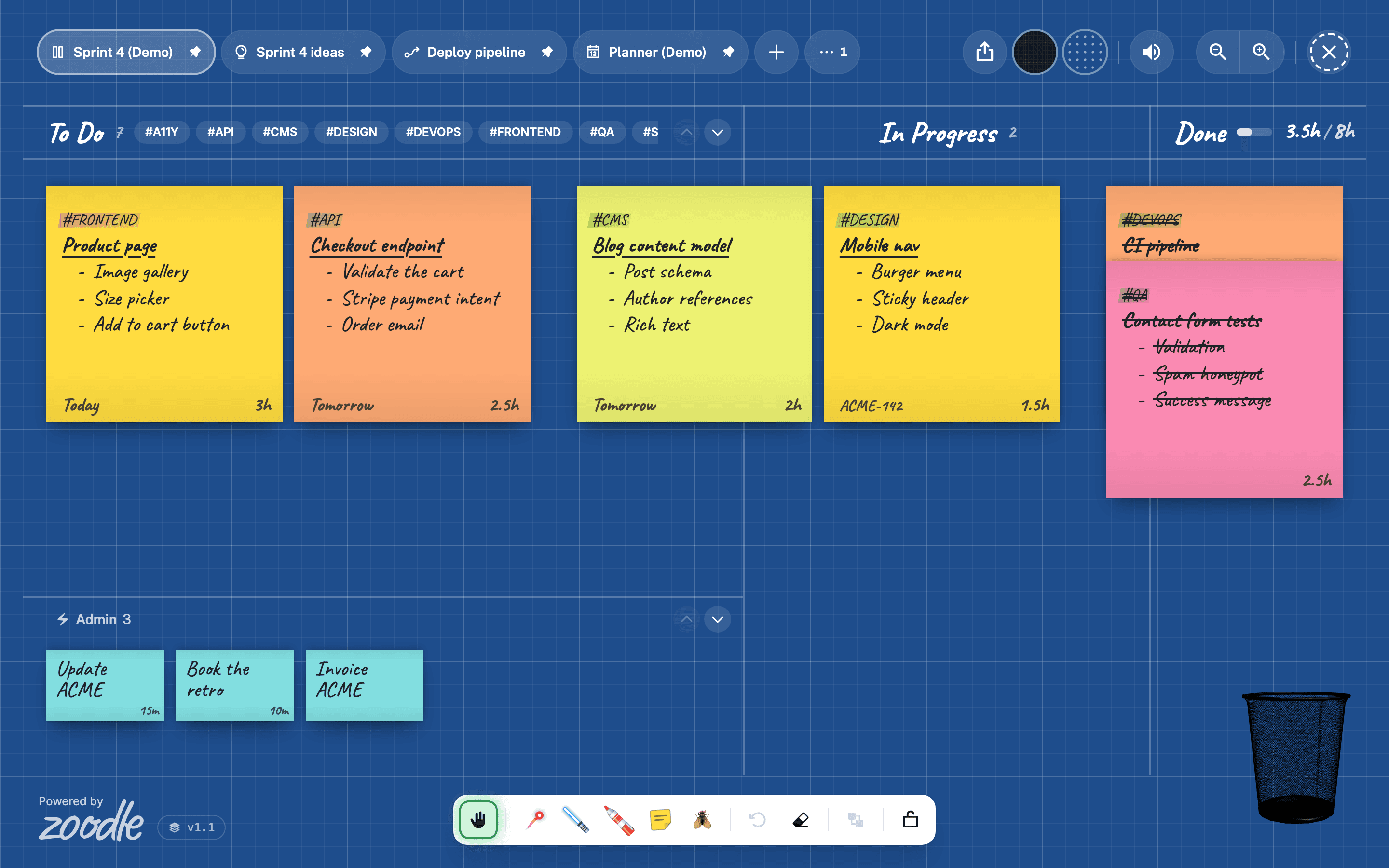
Track is now the Kanban Board. To Do and In Progress are three Post-its across, Done one — fewer as the window narrows, so a Post-it is never cut off. Each Post-it sits in the cell you let it go in, gaps and all, and moving one never shuffles the rest. Point at an empty cell and a faint Post-it with a + appears: press it to add one there.
To Do goes ten rows deep. Scroll over it, or use the arrows by its heading, to go through the rows; a thin bar on the right shows where you are.
Post-its that say more
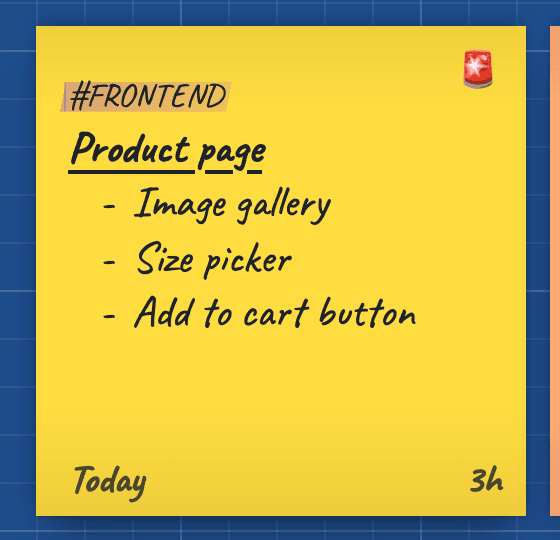
In a Post-it's options: a status — ⚠️ important, 🚨 critical — shown in its top corner; a time estimate, typed as you'd say it (30m, 1.5h), shown bottom right; and a due date, shown bottom left the way tasks say it — Today, Tomorrow, Next week. A #tag is drawn smaller than the words, so the title under it stands out.
An admin backlog
⚡ makes a Post-it a mini one — an admin job, like sending an invoice — in To Do's Admin area at its foot. It's a backlog of its own, ten rows deep, with its own arrows and scrolling. Drag a Post-it in or out to change it.
Done fills a gauge
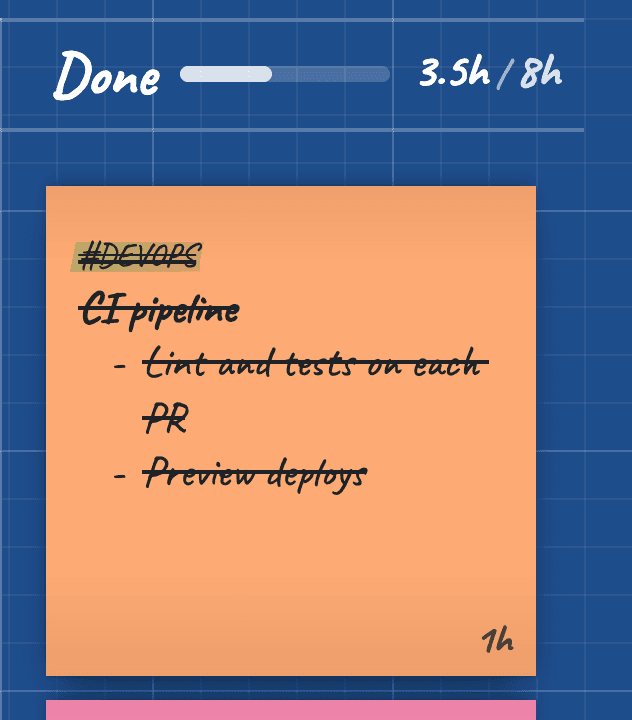
Done's heading has a gauge: the hours estimated on everything in Done, against your day's billable target — 8h, until you change it by pressing it. Move a Post-it into Done and you'll hear a cheer and see confetti.
A bin in 3D
The bin is now in 3D. A Post-it dragged onto it goes straight in as you let go; one crumpled from its options is thrown in a high arc and drops in from the top; the last few sit in its bottom, in their colours. Drag across the bin to spin it, up or down to tip it — it settles back as you move away.
A tidier header
Your boards sit on the left of the header. On the right, each board shows only the controls it uses: a Diagram its code, Annotate and labels; every board Export, Sheet and Texture; then sound, zoom and close. Zoomed in or out, its button stays lit, and the sheet's grid or dots zoom and move with the board.
A demo, All Features and Updates
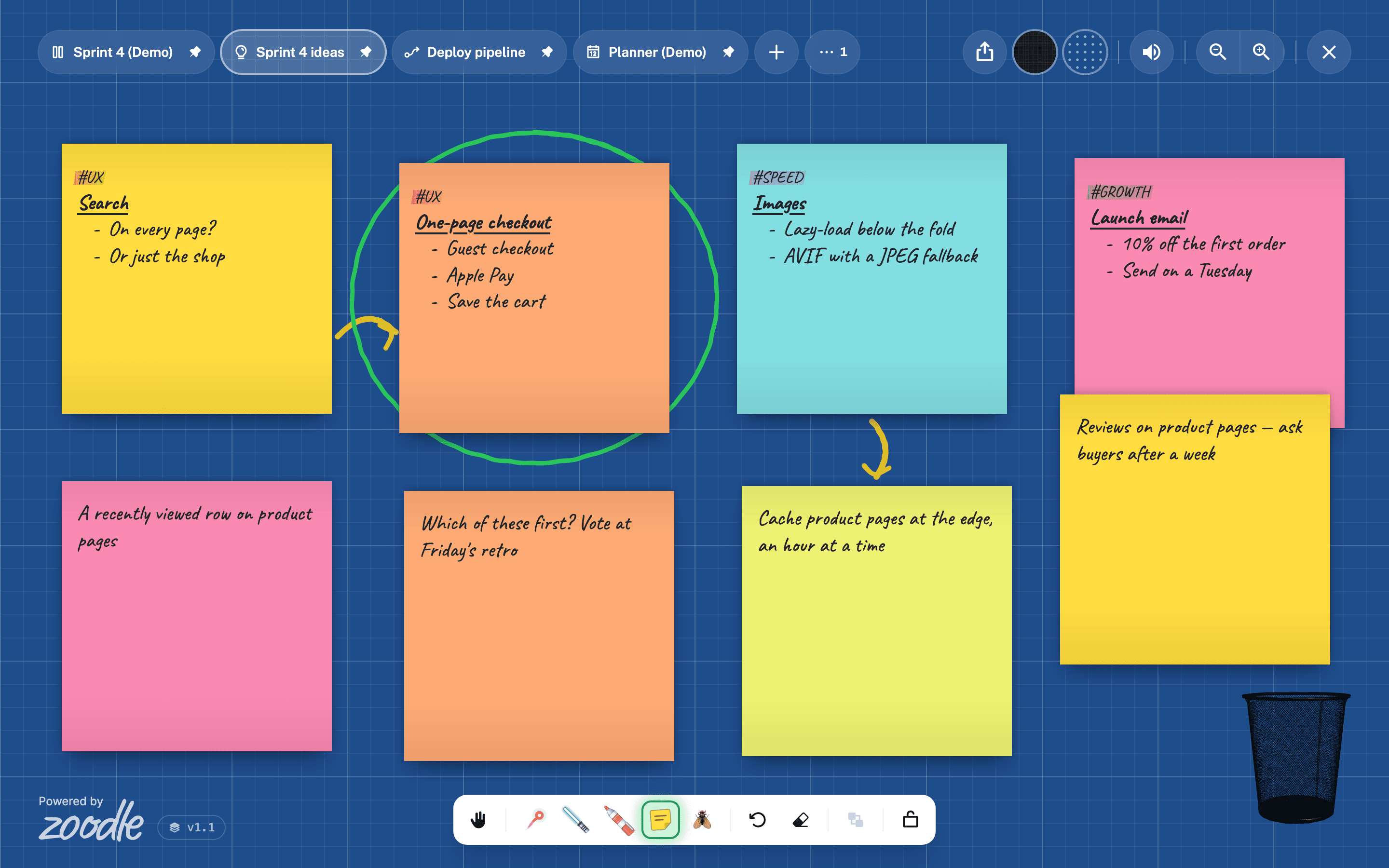
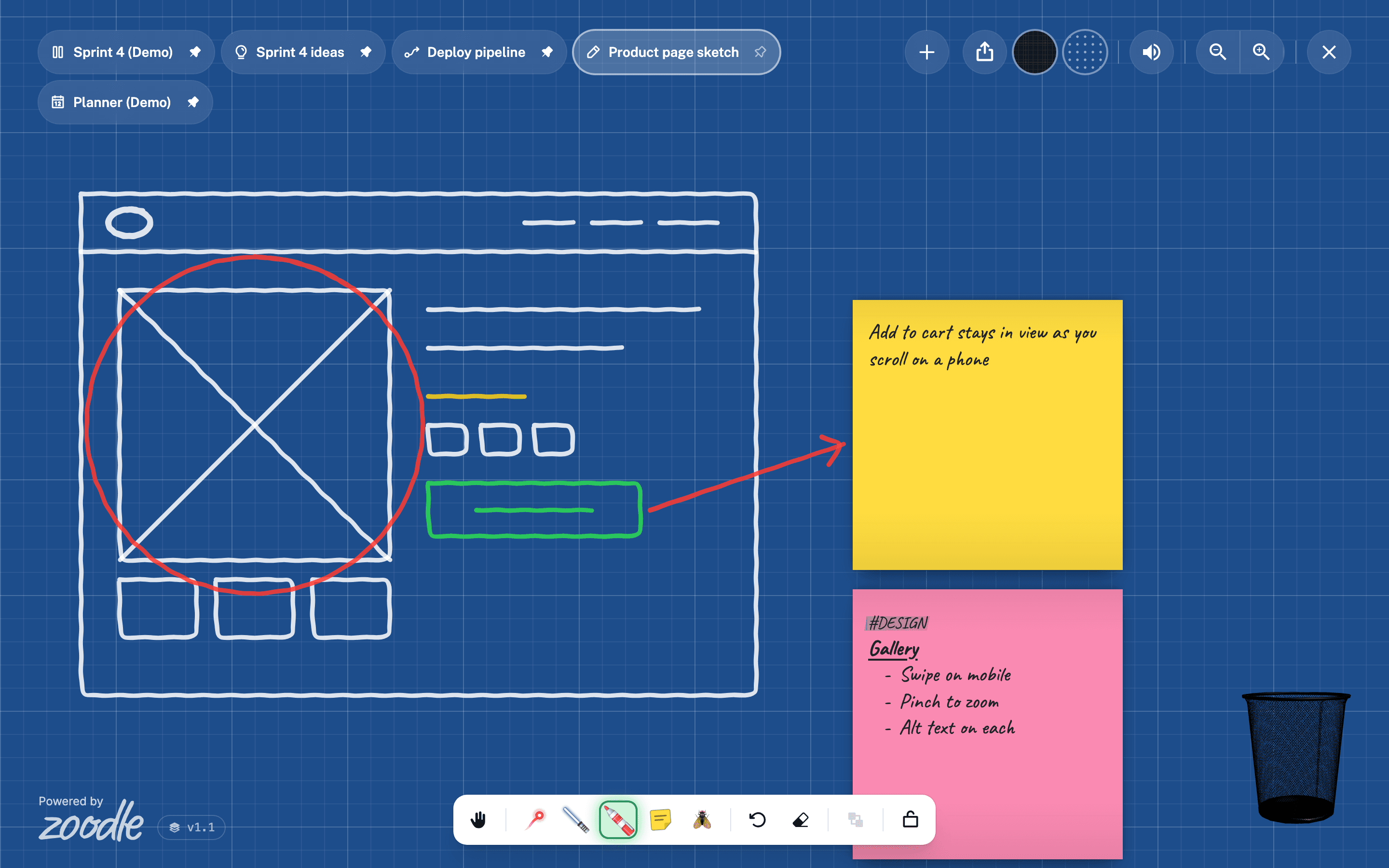
/zoodle#demo opens Zoodle on made-up boards, starting with ACME Shop — Sprint 4 (Demo), with every board type filled in, a Planner of three projects included. Nothing on it is kept, and your own board is left as it was — so it's safe to record or show in a meeting. All Features shows everything Zoodle does, and Updates — these notes — what's new; the version beside Powered by Zoodle opens them.
Enhancements
A link with a label
Give a Post-it a link, such as an issue or an invoice, and a label to show for it. The label sits in its bottom left corner and opens the link. A Jira link gets its issue key as its label.
Order, topics and Done's pile
Give Post-its an order in their options, shown on each as #1, #2. Beside To Do's name is a button for each #topic: press one to see only that topic's Post-its. Done's Post-its stack as a pile, each showing its tag and title. When a Post-it moves on, To Do closes up behind it.
Copies made as you let go
Hold Alt (or ⌘/Ctrl and Shift) and drag to copy a Post-it. The original stays where it was, and the copy is made where you let go. On a Planner, several picked minis copy across as many days as the one you drag.
The fly's callouts are a switch
The fly's comic callouts, like “Missed me!” after a near miss, are now off until you switch them on.